
Ever wondered how you could easily batch-convert video files without making use of expensive software? Recently I was working with Paulina on a video production project, and as some of the footage video files were making problems as MOV files, we wanted to quickly convert them into MP4 files, as that already worked fine for all the other files we used before in the same project. But how to get this done quickly? I only had my laptop with me, and it was not outfitted with video conversion software. Also, I needed all the MOV files converted in bulk, and they were large, so an online service was not applicable for this sort of batch conversion processing. So how to solve that problem?
I remembered that I have the VLC (Video Lan Client) application available on my laptop, which is very popular for all sorts of people to watch videos, but not everybody is aware of its vast set of professional features that are more or less hidden under the hood. If you don’t have VLC, you can download it for free to install it on your PC or to keep it as a portable app, as you prefer. No matter what version you choose does not matter for this tutorial as it will look the same as soon as you open VLC.
If you can’t install software on your system or simply prefer to keep the device free from unnecessary software to avoid it becoming too slow over time you can also check out online converters to convert from MOV to MP4 with solutions like the WinX Video Converter from Digiarty Software.
Here’s the step-by-step guide to converting MOV files to MP4 in bulk

- Step 1: Open VLC, click on “Media”

- Step 2: Click on “Convert / Save…”

- Step 3: Click on “Add…” and choose the file(s) you want to convert
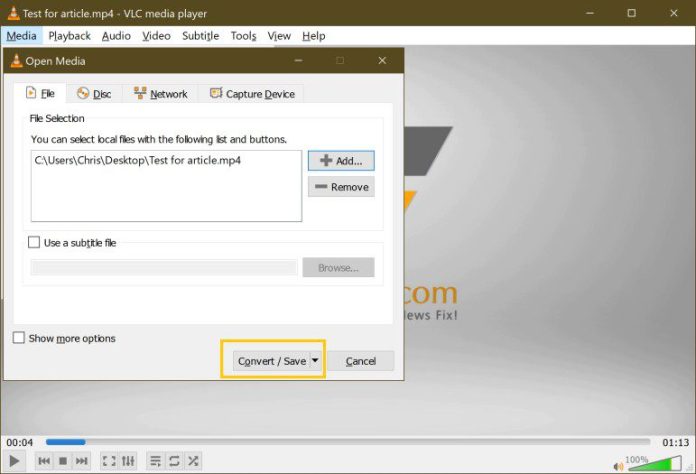
- Step 4: Click on “Convert / Save”

- Step 5: Select the right profile to define the file output format, click on “Browse” and select where you want to save the converted files, click on “Start” to begin converting the files

- Step 6: The bulk conversion process looks like in the screenshot above, every processed file will run through like shown, and the screen will be idle as soon as all the files have been converted to a new format
And there’s more
For those who don’t want to install software, there’s the option of taking advantage of online converters available in the browser. Online converters allow users to convert video files from one format to another without having to install anything and within a few clicks. Video to mp4 converter online solutions are useful and provide a fast way for users to quickly get their files converted into MP4 with no hassle.
Of course, this is just one way to use this function in VLC to convert files. You are not limited to changing codecs or converting MOV files to MP4 video files. You are also not just limited to batch-convert, of course. This how-to will work just as fine for a single file you need in a different format. However, VLC might not be able to help you with corrupted video files. To fix broken videos you can always try out the Remo Video Repair tool though.
Are you wondering what else VLC can do? VLC is a fantastic piece of software, and it belongs on every PC, especially as it’s free to use. Okay, it might be slightly less useful on your smartphone, but it would still play all sorts of media without being at risk of not knowing a particular codec that only works for company XYZ. If you want to find out about more things you can do with VLC, go right ahead and check the article “20 VLC Player Tips and Tricks” by Azwan Jamaluddin on the Hongkiat blog.
Also, I wanted to let you know that there is an excellent video by B.R. Bhandari on how to do precisely this, in case you’d like to watch the steps in motion and with narration. You can find the video right beneath the article. Enjoy!
YouTube: How to Convert MOV to MP4 Format Using VLC (Easy Way)

By clicking play, you agree to YouTube's Terms of Service and Privacy Policy. Data may be shared with YouTube/Google.
Photo credit: The feature image has been done by Jakob Owens. The screenshots shown are owned by VLC.
